A day with their board
One board goes with a child from breakfast to bedtime and from one school year to the next: at home, on the bus, at school, in therapy and at Grandma’s. Here is one day, in the app’s real screens.
Real screens from the Speek2Me app. The names are made up.
1Morning at home
Ava asks for breakfast, in her own words
She taps I, want, then opens Food & Drink for breakfast. Each picture is said as she taps it, and Speak says the sentence. The family set the board up once, on the tablet they already had.
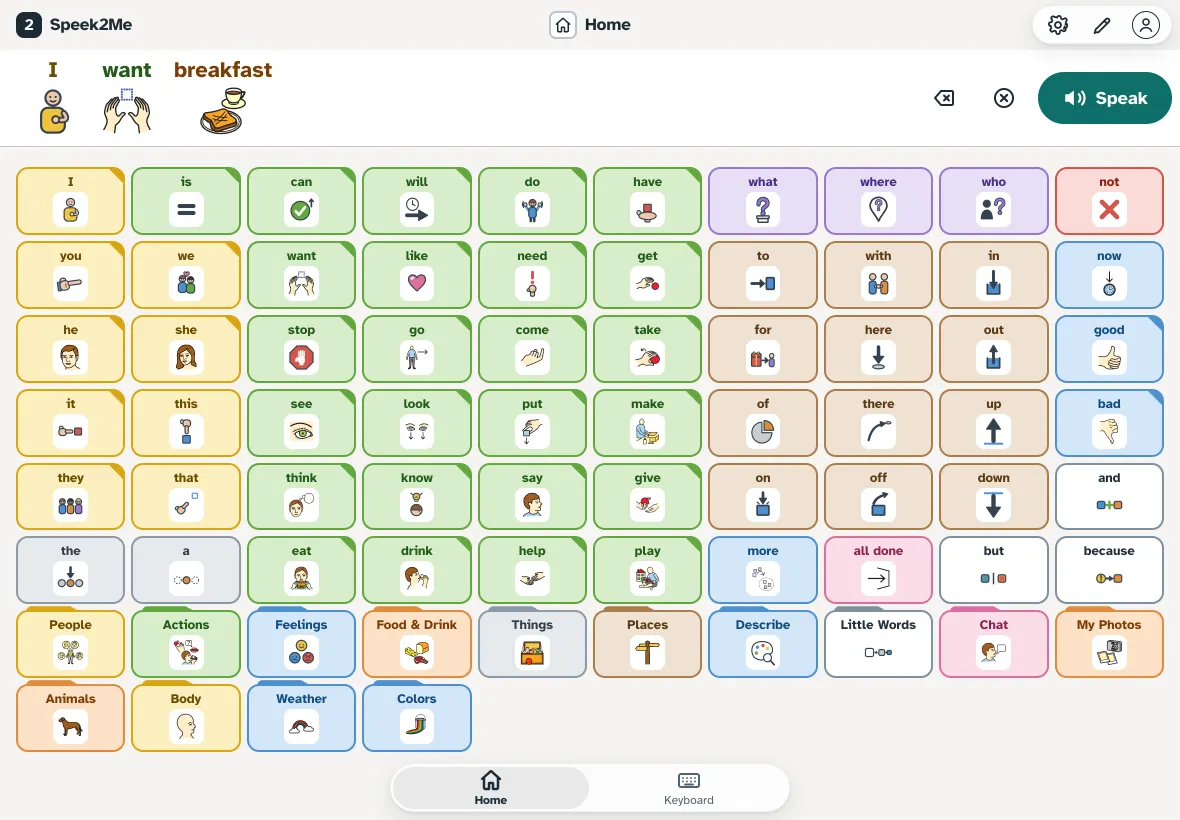
The kitchen tablet: “I want breakfast”, ready to speak. 2On the bus
No signal, and she is still talking
The bus loses its connection between stops. The board says it is offline and carries on: the voice runs on the phone itself, and anything changed now is saved on the device until the signal is back.
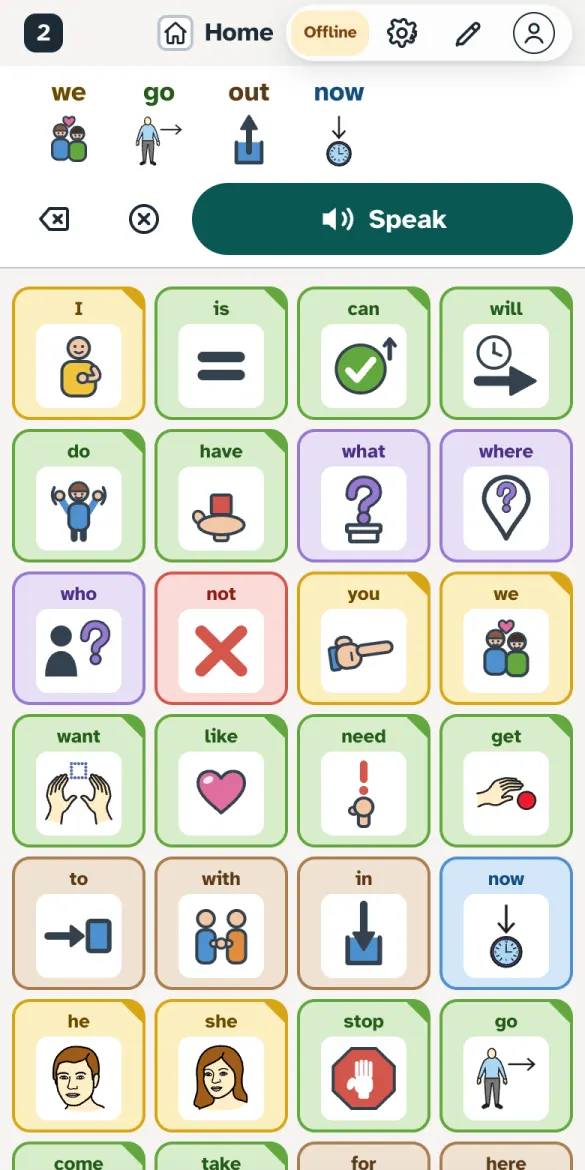
Offline, and still speaking. 3At school
Her teacher opens the same board
Ms Rivera signs in on the classroom tablet and her first screen is the boards families have shared with her. She opens Ava’s, and every tile is where Ava expects it, because it is the same board, not a copy.
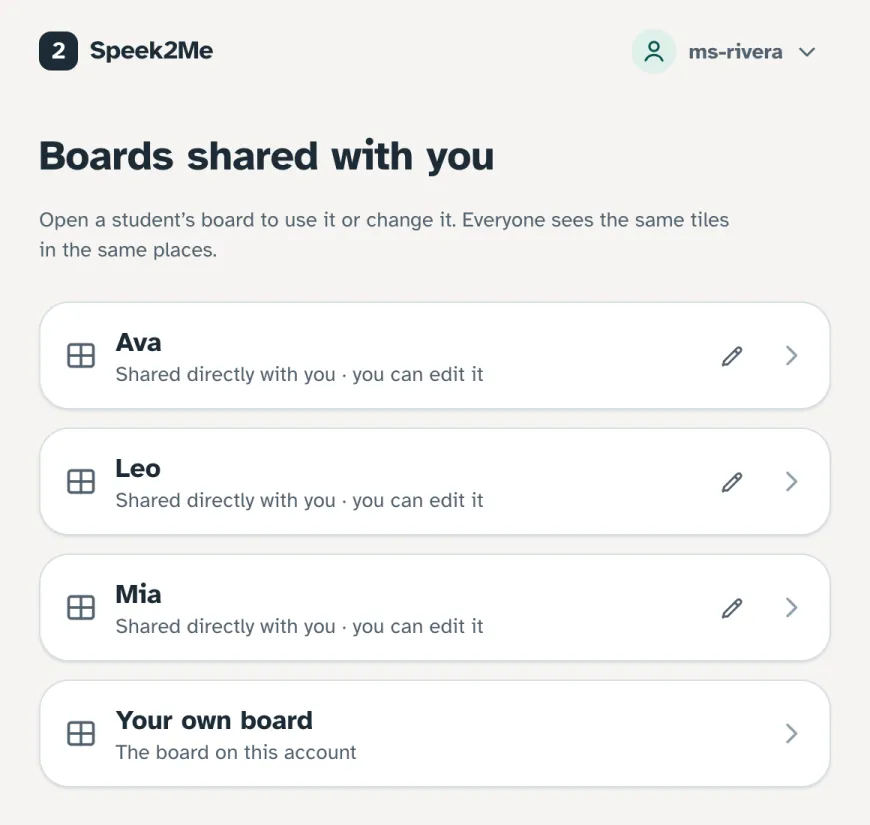
A teacher starts on the boards shared with her. 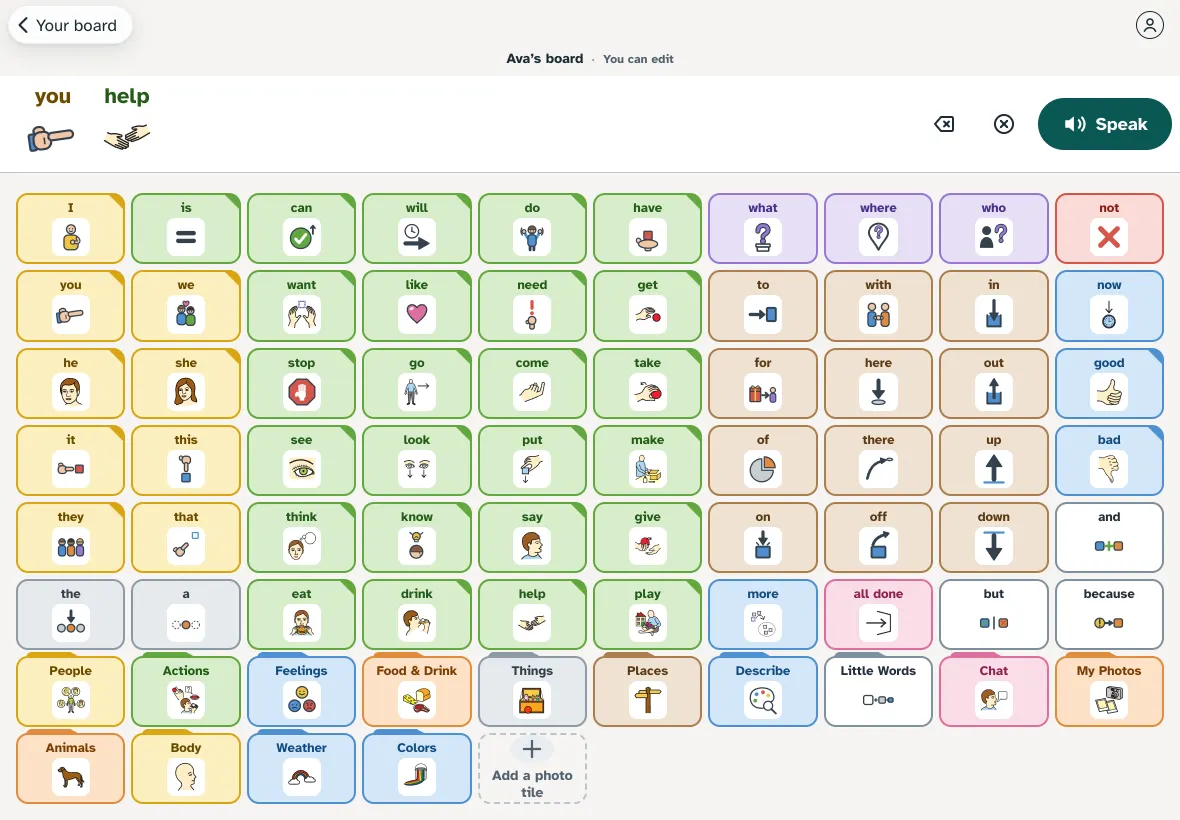
Ava’s board on the classroom tablet, tile for tile. 4Speech therapy
A new word, on every device within seconds
In the afternoon session, Ava keeps pointing at the swing. Her therapist adds it as a photo tile from her own device. By the time Ava picks up her phone, “swing” is on it, in the same place on every device she uses.
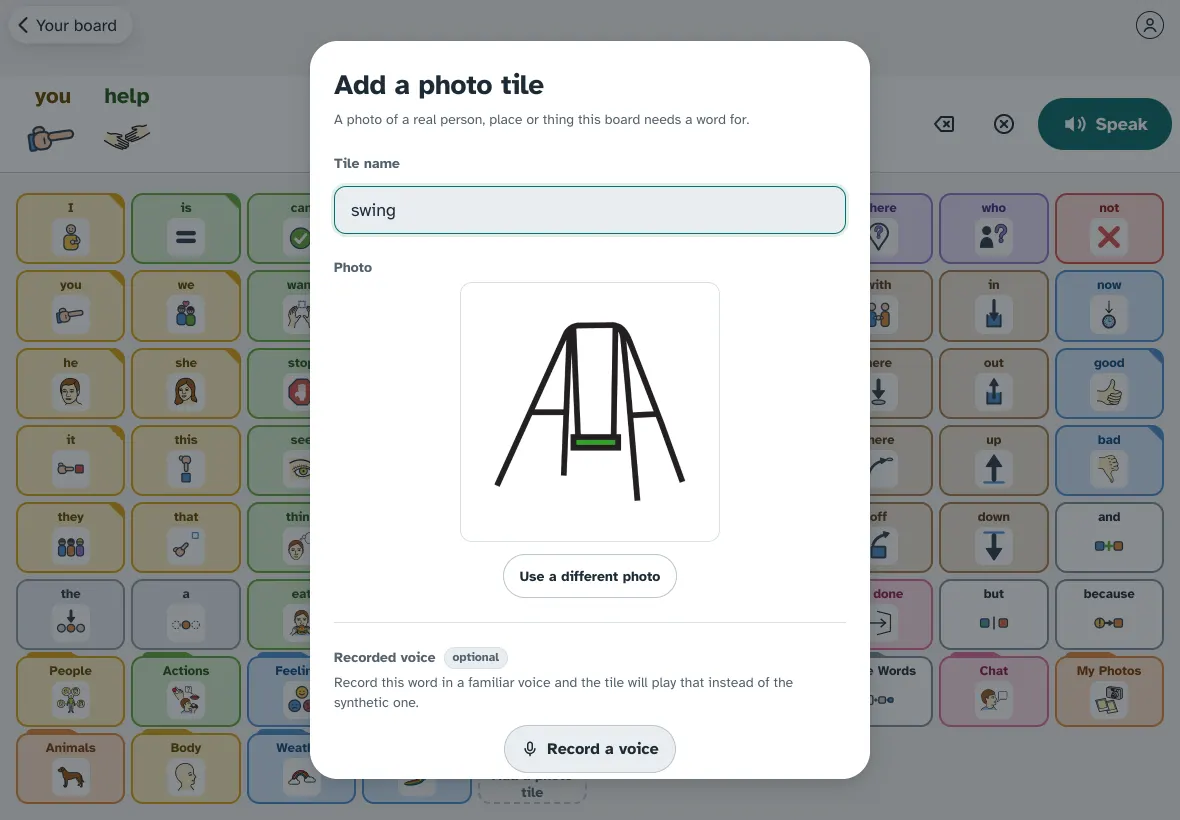
Adding “swing” from the therapist’s device. 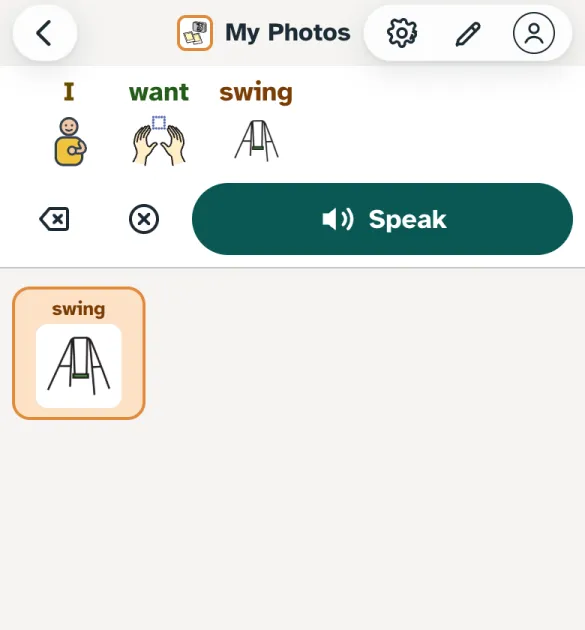
On Ava’s phone: I want swing. 5At Grandma’s
The sitter gets the board, not the account
Ava stays with Grandma for the evening. Her parents send a link that opens Ava’s board on Grandma’s own phone. It speaks, it cannot be changed, and it ends by itself after 4, 8 or 12 hours.
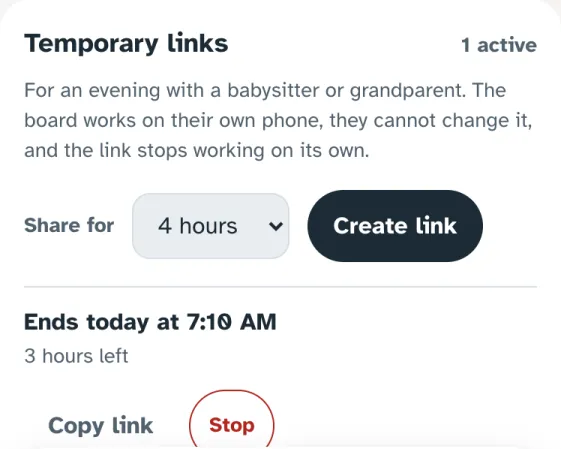
A temporary link, ending on its own. 6A new school year
The school changes. The board does not.
In September Ava moves to a new school. Her family removes the old one with one button and invites the new teacher with a code. Nothing on the board moves, because it was always Ava’s and never the school’s.
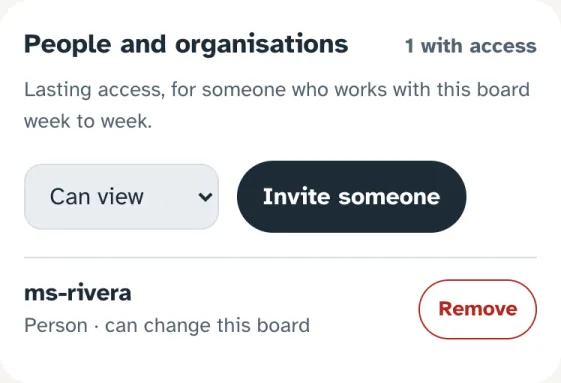
Who can see the board, and a Remove button for each.
Give them a board that goes everywhere
We are inviting families, teachers and speech therapists in small groups. It runs in any browser; apps for iPhone, iPad and Android are in testing.